
Apple’s over-the-air (OTA) software update system is made to keep reminding users about new iOS versions. When Apple releases a new update, the iPhone or iPad usually downloads the update package in the background. After that, the device starts showing daily reminders like “Update Tonight”. It also places a red notification badge on the Settings app.
For many people, these reminders are helpful. However, some users prefer to stay on their current iOS version. This is common for people using older devices, keeping a specific firmware for jailbreaking, or simply staying on a version that works well. In these situations, the repeated update notifications can become annoying during normal use.
Apple allows users to turn off automatic updates. Even so, the system still checks Apple’s update servers in the background. Because of this, update reminders and download prompts can continue to appear.
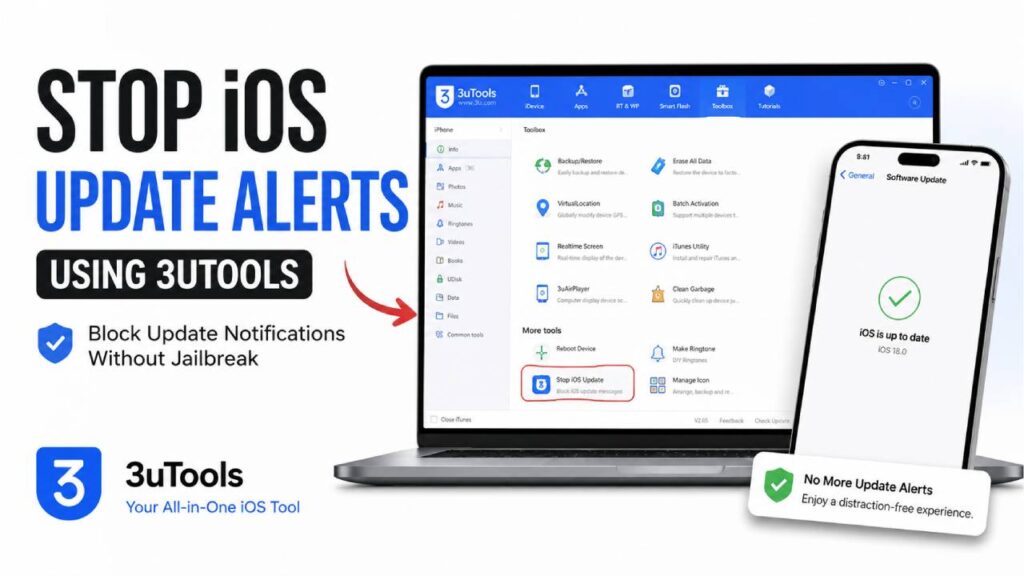
3uTools provides another way to stop these notifications. You can turn off iOS software update notifications using 3uTools. Instead of changing normal iOS settings, it installs a special configuration profile that changes how the device checks for updates. The process does not require a full jailbreak. Once the profile is active, the update system stops looking for normal iPhone or iPad software updates.
Technical Requirements
Before starting, make sure the computer and the iOS device meet these basic requirements. This helps avoid connection problems or errors during the process.
Operating System
Use a computer running Windows 10 or Windows 11. Administrator rights are recommended.
Software Version
Install the latest stable version of 3uTools.
Drivers
The computer should already have iTunes or the Apple Mobile Device Support drivers installed. These drivers allow the computer to communicate correctly with the iPhone or iPad through USB.
USB Cable
Use an original Apple Lightning or USB-C cable whenever possible. Some third-party cables may disconnect during the process or fail to transfer data correctly.
How 3uTools Blocks iOS Updates
The Stop iOS Update feature in 3uTools works by installing a special configuration profile on the device. This profile redirects the iOS update system so it checks for tvOS software instead of normal iPhone firmware.
Because the device is no longer checking the standard iOS update server, it reports that the current software is already up to date. As a result, update notifications and automatic downloads stop.
Step 1: Remove Any Downloaded Update
If the iPhone has already downloaded an iOS update, deleting the update file is the first step. Otherwise, the notification may continue to appear.
Open Settings.
Go to General > iPhone Storage.
Wait until the storage list finishes loading.
Look for an item named iOS [Version Number] or Software Update.
Open it.
Tap Delete Update.
Confirm the deletion when asked.
This removes the downloaded update package from the device.
Step 2: Connect the Device
Open 3uTools on the computer using administrator rights.
Unlock the iPhone or iPad.
Connect it to the computer using the USB cable.
If a Trust This Computer message appears, tap Trust and enter the device passcode.
Wait until 3uTools recognizes the device.
The main device page should display information such as the device model, serial number, and current iOS version.
Step 3: Send the Stop Update Profile
In 3uTools, select the Toolbox tab.
Find Stop iOS Update.
Open the tool.
Click Send Description File to Device.
Wait until 3uTools confirms that the file was sent successfully.
Step 4: Install the Profile on the Device
Disconnect the USB cable after the confirmation message appears.
Open Settings on the iPhone or iPad.
A new option called Profile Downloaded should appear near the top of the Settings screen.
If it does not appear, go to Settings > General > VPN & Device Management.
Open the tvOS Beta Software Profile.
Tap Install in the upper-right corner.
Enter the device passcode.
Review the information shown on the screen.
Tap Install again to continue.
The device will ask for a restart.
Tap Restart.
After the restart finishes, the profile becomes active.
Check That It Is Working
After the device starts again, verify that everything is working correctly.
Open Settings.
Go to General > Software Update.
The device will check for updates for a short time.
If everything worked correctly, the screen should display “iOS is up to date.”
This means the update system is now using the installed profile instead of checking for normal iOS updates.
What Happens After the Profile Is Installed
Settings Notification Badge
The red badge on the Settings app disappears after the downloaded update has been removed and the system refreshes.
Background Downloads
The device no longer downloads new iOS updates in the background because the update service is redirected.
Manual Update Check
Even when checking manually, the Software Update page reports that the current version is already up to date.
Troubleshooting Common Problems
“Send Description File Failed” Error
Sometimes 3uTools may fail while sending the profile.
This usually happens because the device is locked or does not have permission to complete the process.
Make sure the iPhone stays unlocked during the entire process.
If the device uses Stolen Device Protection or has an enterprise Mobile Device Management (MDM) profile, temporarily disable those restrictions before sending the profile.
After that, try the process again.
The Red Settings Badge Does Not Go Away
Sometimes the update file has already been removed, but the red notification badge remains.
This is usually caused by a cached notification in the system interface.
To refresh it, open Settings.
Go to General > Language & Region.
Temporarily change the region to another country.
Wait until the device updates the settings.
Then change the region back to the original one.
This refreshes the notification cache and often removes the remaining badge.
How to Turn Software Updates Back On
If updates are needed again later, removing the profile only takes a few minutes.
Open Settings.
Go to General > VPN & Device Management.
Select the installed tvOS Beta Software Profile.
Tap Remove Profile.
Enter the device passcode.
Confirm the removal.
Restart the iPhone or iPad.
After the device starts again, the normal iOS update system becomes active.
The Software Update page will once again connect to Apple’s standard update servers. The device will be able to check for, download, and install the latest public iOS updates as usual.