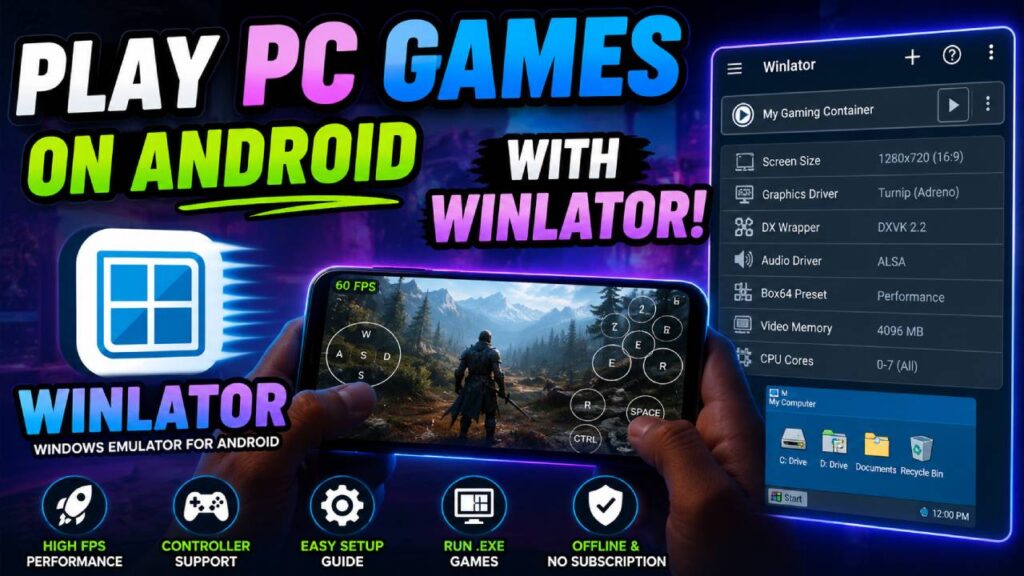
The gap between desktop and mobile gaming has become much smaller. Thanks to Winlator, you can now run Windows PC games and software on Android devices.
Winlator is a powerful, open-source Android app. It combines Wine with the Box86 and Box64 translation layers. Because of this setup, Android phones, tablets, and gaming handhelds can run native x86 and x64 Windows programs.
Unlike cloud gaming services, Winlator runs games directly on your device. So, you do not need constant high-speed internet or monthly subscriptions.
You can use Winlator for classic retro games, indie games, and some 3D titles. Examples include Fallout: New Vegas, Skyrim, GTA V, and Hollow Knight.
This setup guide explains how to configure Winlator. It also covers important features and settings that can help you reach 60 FPS performance.
What is Winlator and How Does It Work?
Winlator is a special Android compatibility environment. It uses several important translation technologies to run Windows software on Android.
Wine (Wine Is Not an Emulator): Wine translates Windows API calls into POSIX instructions. Android’s Linux base can then understand these instructions.
Box86 & Box64: These tools translate x86 and x86_64 CPU instructions into ARM64 instructions. Modern mobile processors can understand these ARM64 instructions.
DXVK & VKD3D: These tools translate DirectX graphics calls into Vulkan. They support Direct3D 9, 10, 11, and 12. This process avoids OpenGL overhead and can greatly improve frame rates.
Turnip (Adreno) Drivers: Turnip provides custom open-source Vulkan drivers for Qualcomm Snapdragon GPUs. These drivers offer the highest available compatibility and graphics rendering speeds on Android.
Together, these technologies create isolated Containers. These Containers work as virtualized Windows environments. As a result, desktop executable files, including .exe files, can launch inside Winlator.
Recommended Hardware & System Requirements
Running desktop translation layers on mobile hardware needs a lot of processing power. So, check your device hardware before installing Winlator.
| Hardware Tier | Recommended Processor | GPU & Driver Stack | Target Games & Expected Performance |
|---|---|---|---|
| Flagship (Best) | Qualcomm Snapdragon 8 Gen 2 / Gen 3 / 8 Elite | Adreno GPU + Turnip Driver + DXVK | Heavy 3D AAA & Modern Indies, including GTA V, Dead Space, and Skyrim, at 45–60 FPS |
| Mid-Range | Snapdragon 7 Series / Snapdragon 870 / 888 | Adreno GPU + Turnip Driver | Lightweight 3D & 2D Indies, including Hollow Knight, Fallout 3, and Cuphead, at 30–60 FPS |
| Alternative Chips | MediaTek Dimensity / Samsung Exynos | Mali GPU + VirGL / Gladio / Zink | 2D Indie titles & older DirectX 8/9 games at 30 FPS |
Storage & Memory Requirements
RAM: You need at least 6 GB of RAM. However, 8 GB to 12 GB or more is strongly recommended. Extra RAM helps prevent Out-Of-Memory (OOM) crashes. These crashes can happen when Android and the translation tools use memory together.
Storage: Keep at least 10 GB to 20 GB of free internal storage. Desktop games can take up a lot of space. Also, keeping games on internal storage gives you better read and write speeds.
Step-by-Step Setup Guide for Winlator
Follow these steps to install Winlator and create your first execution container. You will also learn how to prepare your game files.
Step 1: Download and Install the Winlator APK
Download the official Winlator APK, such as Winlator 11 or 11.1 Final. Get it from the project’s official GitHub releases repository.
Next, open your Android file manager. Tap the downloaded .apk file.
Android may ask for permission to Install Unknown Apps. If it does, allow the permission.
Then, launch Winlator for the first time. Winlator will extract its internal rootfs image and system files. Allow the full process to finish before continuing.
Step 2: Prepare Your PC Game Files
Traditional desktop storefront clients like Steam can be difficult to run natively through emulation. Therefore, DRM-free offline installers usually give you the cleanest experience.
For example, you can use installers from GOG.com. You can also use portable, pre-installed game folders.
First, download the game’s setup files or pre-installed game folder onto your phone. You can also transfer these files from your PC.
Then, place the game folder directly inside your Android device’s default Download directory.
Note: Winlator automatically maps your phone’s internal Download folder as the D: Drive inside the Windows container.
Step 3: Create and Configure a New Container
Open Winlator first. Then, tap the + (Plus) icon in the top-right corner.
Create a new container and give it a name. For example, you can use “Main Gaming Container.”
Next, adjust these core settings:
Screen Size / Resolution: Choose 1280×720 (720p) or 960×544. Lower resolutions use fewer GPU resources on mobile screens.
Graphics Driver: Choose Turnip (Adreno) when using a Snapdragon device. For MediaTek Dimensity or Exynos devices, select VirGL (Universal) or Zink.
DX Wrapper: Choose DXVK 1.10.3 or DXVK 2.x for DirectX 9, 10, and 11 games. For older DirectX 7 or 8 games, select WineD3D. You can also use WineD3D as a fallback option.
Show FPS: Turn this option ON to display frame rate and performance information on your screen.
Under the Wine Configuration tab:
Video Memory Size: Set it to 4096MB. You can also match the value to your available RAM budget.
Under the Advanced tab:
Box86 / Box64 Presets: Start with Compatibility when testing a game for the first time. If the game works well, try Performance or Fast for higher frame rates.
CPU Affinity: Make sure all available CPU cores are enabled. For example, check cores 0 through 7.
Finally, tap the checkmark button at the bottom. This saves your container settings.
Step 4: Installing and Running Your Game
Find the container you created in the Winlator menu. Then, tap its three-dot menu and choose Run.
Wait for the virtual desktop to open. Next, double-tap My Computer and open the D: Drive.
Find your game folder or installer. For an installer, look for a file such as setup.exe.
Run the installer to install your game. If you already have a pre-installed game, double-tap its main .exe file.
Pro Tip: Right-click the game’s executable file inside Winlator. Then, select Create Shortcut.
Winlator will add a direct launch icon to its main home screen. As a result, you will not need to browse the desktop every time.
Essential Winlator Features You Must Know
There are some useful Winlator Emulator Features and tools for running desktop games on Android touchscreens.
Custom Touch Input Controls: Winlator includes an input mapper. It lets you place virtual analog sticks, D-pads, and action buttons on the screen. You can also switch between RTS mouse modes and full Virtual Gamepad layouts.
Physical Controller Support: You can connect external gamepads through Bluetooth or USB-C. Winlator supports XInput, Xbox Controllers, PlayStation DualSense, and Android handheld controls. It automatically sends physical controller inputs to the container.
Per-Game Container Isolation: Different games may need different settings. For example, they may require different DirectX wrappers, driver versions, or Box64 presets. Therefore, you can make separate containers for different games without changing other game settings.
Built-in System Dependencies: Winlator gives you direct access to Wine Mono and Visual C++ Redistributables. Wine Mono provides a .NET translation framework. These tools help installers that depend on Windows system components.
Real-World Troubleshooting & Optimization Matrix
If a game does not launch or keeps crashing, use this troubleshooting guide.
| Issue / Error Symptom | Root Cause | Exact Fix |
|---|---|---|
| Game crashes instantly on launch or shows a black screen | Incorrect DirectX wrapper or incompatible Box64 preset. | Open Container Settings. Change DX Wrapper from DXVK to WineD3D. You can also change Box64 from Performance to Compatibility. |
| Installer fails because of missing .NET / VC++ | Required Windows dependencies are missing. | Inside Winlator, open Start Menu → System Tools. Install Wine Mono / VC++ Redistributables. Then, run the setup again. |
| Low FPS / Stuttering / Lag | High rendering resolution or incorrect GPU driver. | Lower the resolution to 1280×720 or 800×600. On Snapdragon devices, make sure Turnip is active instead of standard system drivers. |
| Controls do not respond to touch | Input mode has not been configured. | Swipe inward from the left screen edge or press Back. Open Controls → Input Controls. Then, choose Virtual Gamepad or your mapped profile. |
| Game window appears tiny in the top corner | Desktop scaling and resolution do not match. | Open Container Settings. Then, enable Force Fullscreen under graphics parameters. |
Final Performance Tips for the Ultimate Mobile PC Gaming Experience
Keep Thermal Throttling in Check: PC translation makes your mobile SoC run at high clock speeds for long periods. This can create extra heat. So, use a clip-on smartphone cooling fan or lower the game’s graphics settings. Doing this can reduce thermal throttling and battery drain.
Prioritize DRM-Free Titles: Games from GOG or other standalone DRM-free sources usually work more easily. They avoid background anti-cheat systems and client launchers that may fail in Wine environments.
Experiment with Per-Game Shortcuts: Adjust container settings for each game shortcut. Different games may need different settings. For example, a setting that makes a 2D platformer faster could cause an open-world 3D game to crash.