
Moving files between phones and computers has often been frustrating. Different operating systems do not always work well together. Many file-sharing methods come with limitations. Cloud storage services use internet data and often have storage limits. USB cables may need drivers or extra software. Built-in sharing tools such as AirDrop and Quick Share work well inside their own ecosystems, but they do not easily connect different platforms.
EasyShare Web removes these common problems. Vivo developed EasyShare Web as part of its file-sharing and data-transfer system. Instead of depending on cloud servers or extra software, it uses a browser-based solution inside the local network. The phone temporarily acts as a small file server. This allows files to move between devices through a web browser. The receiving device can be a Windows PC, Mac, Linux computer, or Chromebook. No additional software installation is required on the receiving device.
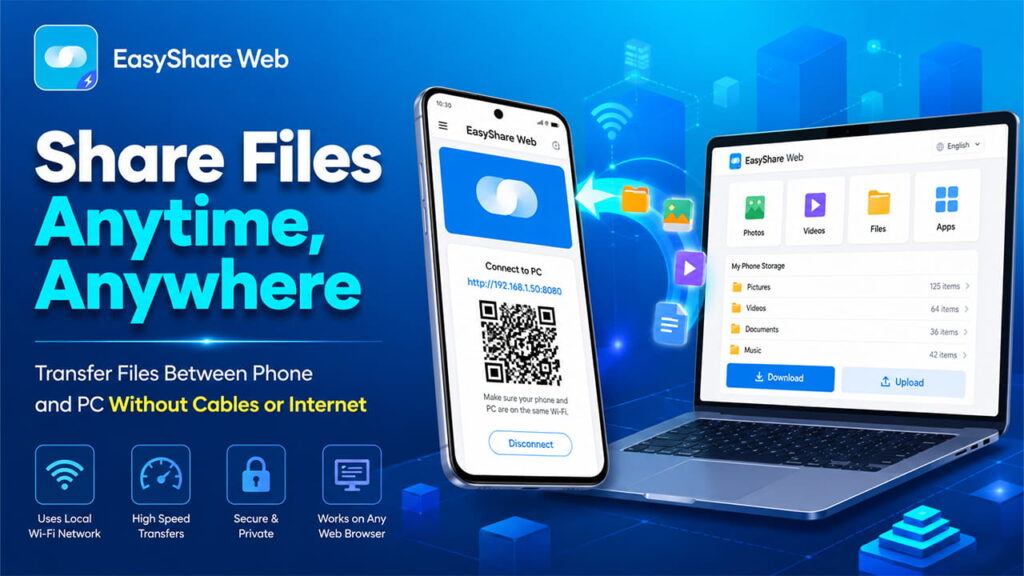
The Core Architecture: How EasyShare Web Works
Most traditional file-transfer services send files to a remote cloud server first. The receiving device then downloads the files from that server. EasyShare Web works differently. It creates a direct connection inside the local area network (LAN). This approach improves speed and helps keep data private.
When EasyShare Web starts on a phone, several network processes begin automatically.
Local Server Initialization
The application creates a small HTTP server directly inside the phone. This server runs temporarily in the device memory and becomes ready to share files.
IP Address and Port Assignment
The server connects to the phone’s local IP address provided by the Wi-Fi router. For example, the address may look like 192.168.1.50. The application also opens a specific network port, such as port 8080 or another dynamically assigned port.
Security Token Generation
To prevent unwanted access from other devices on the same network, EasyShare Web creates a unique security token. This token becomes part of a special URL. The application can also display it through a QR code.
When a computer enters the provided address or scans the QR code, a direct connection opens between the devices. File transfers use standard TCP/IP networking protocols through the local Wi-Fi router.
The data never travels through the public internet. Instead, it stays inside the local network. Because of this, transfer speed mainly depends on the Wi-Fi hardware being used. On modern 5 GHz Wi-Fi 5 or Wi-Fi 6 networks, speeds can often exceed 20 MB/s to 40 MB/s.
Step-by-Step Guide: Transfer Files from Phone to PC
For EasyShare Web to work correctly, both devices must be connected to the same Wi-Fi network or hotspot.
Step 1: Start the Web Server on the Phone
Open the EasyShare application on the smartphone.
From the main screen, open the menu. The menu is usually located in the top-right corner or inside the tools section. Select WebShare or Connect to PC.
The application will immediately create a connection page. This page displays a web address and a QR code.
Step 2: Connect Through the Browser
Open a modern browser on the computer. Supported browsers include Google Chrome, Microsoft Edge, Mozilla Firefox, and Apple Safari.
There are two ways to connect.
Method 1: Enter the URL Manually
Type the exact address shown on the phone into the browser’s address bar.
For example:
http://192.168.1.50:8080
Press Enter.
Method 2: Scan the QR Code
If another device has a camera available, scan the QR code shown on the phone screen. The browser will automatically open the connection page.
Step 3: Transfer Files
After the connection is established, the browser loads a web dashboard created directly by the phone.
The dashboard usually organizes content into categories such as:
- Photos
- Videos
- Files
- Apps
Download Files to the Computer
Open the required folder through the dashboard.
Select the files that need to be downloaded.
Click the Download button.
The selected files will transfer through the local network and save directly to the computer’s Downloads folder.
Upload Files to the Phone
Drag files from the computer into the Upload section of the browser page.
The files will transfer directly to the phone and save in the designated storage folder.
Technical Performance Comparison
A local browser-based transfer system provides several advantages over traditional methods.
| Performance Metric | EasyShare Web (LAN) | Cloud Storage Services | Bluetooth Transfer |
|---|---|---|---|
| Data Route | Local Network Only | Internet Server Round Trip | Direct Device Connection |
| Average Speed | 150 Mbps – 450 Mbps | Depends on Internet Upload Speed | 2 Mbps – 25 Mbps |
| Internet Required | No | Yes | No |
| File Size Limits | Based on Device Storage | Limited by Cloud Storage Quotas | Limited by Slow Transfer Speed |
| Software Requirement | Web Browser Only | App or Web Account Needed | Device Pairing Required |
Because EasyShare Web uses the local network, it avoids internet speed limitations. It also removes cloud storage restrictions and account requirements.
Troubleshooting Common Problems
Although EasyShare Web is simple to use, network conditions can sometimes create connection issues. Below are the most common problems and their solutions.
Problem: Browser Shows “ERR_CONNECTION_TIMED_OUT”
This message means the computer cannot reach the phone’s local server.
Possible Cause
The phone and computer may not be connected to the same network.
Many modern routers create separate 2.4 GHz and 5 GHz Wi-Fi networks. Some routers also enable guest network isolation, which blocks communication between devices.
Solution
Check the Wi-Fi settings on both devices.
Make sure both devices are connected to the exact same network name (SSID).
If a VPN is running on the phone or computer, temporarily disable it. VPN software can hide local network addresses and prevent devices from seeing each other.
Problem: Transfer Stops During Large Files
The transfer begins correctly but suddenly stops when sending large videos or folders.
Possible Cause
Android battery optimization may place the EasyShare process into sleep mode while it runs in the background.
Solution
Open:
Settings > Apps > EasyShare > Battery
Change the battery setting from Optimized or Restricted to Unrestricted.
This allows EasyShare to continue running normally during long file transfers.
Problem: Dashboard Does Not Load Properly
The browser opens the address, but the page stays blank or keeps showing a loading icon.
Possible Cause
Browser extensions may block some parts of the EasyShare interface.
Ad blockers, script blockers, and strict privacy tools can sometimes mistake local scripts for tracking code.
Solution
Temporarily disable the browser extension.
Another option is to add the local IP address to the extension’s whitelist.
Opening the EasyShare page in a Private or Incognito window can also help because many extensions stay disabled there by default.
Final Thoughts
EasyShare Web offers a simple way to transfer files between phones and computers. It does not require internet access, cloud storage accounts, USB cables, or additional software on the receiving device. Instead, it uses a temporary local web server running on the phone and transfers data through the local Wi-Fi network.
Because the entire process stays inside the local network, file transfers are usually faster and more private than many traditional methods. Whether the receiving device runs Windows, macOS, Linux, or ChromeOS, EasyShare Web provides an easy browser-based solution for moving files between devices with very little setup.