
Playing Minecraft on a phone used to feel limited. However, that is no longer true. Modern mobile devices can run huge Minecraft worlds smoothly. Players can build houses, explore caves, create farms, and join multiplayer servers directly from a phone or tablet.
Minecraft on mobile uses the Bedrock Edition engine. Because of that, it shares almost the same features found on PC and consoles. Cross-platform multiplayer, redstone systems, survival gameplay, and large worlds all work very well on mobile devices.
Still, touch controls feel very different from using a keyboard, mouse, or controller. So, learning the right settings and controls makes the game much easier. This guide explains How To Play Minecraft On Mobile in a simple and practical way.
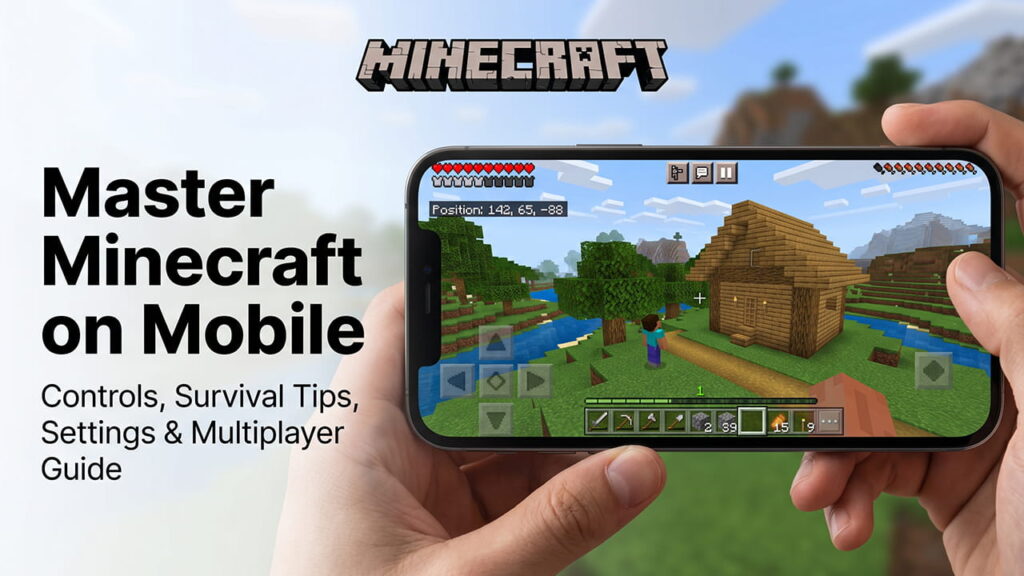
Getting Started With Minecraft Mobile
Minecraft is available on Android and iPhone devices. The game appears as Minecraft in both the Google Play Store and Apple App Store. Many older players still call it Minecraft Pocket Edition or MCPE, but the official name is now simply Minecraft.
Before installing the game, device performance matters. Minecraft creates worlds in real time. Because of that, weak hardware may cause lag, overheating, or low frame rates.
| Requirement | Minimum Specs | Recommended Specs |
|---|---|---|
| Android Version | Android 8.0+ | Android 10.0+ |
| iPhone Version | iOS 13.0+ | iOS 15.0+ |
| RAM | 2 GB | 4 GB+ |
| Storage | 1 GB | 2 GB+ |
The game itself does not use much storage at first. However, explored worlds become larger over time. Every generated chunk adds more save data to the device.
Best Settings For Better Gameplay
The default settings are not always comfortable for mobile players. So, changing a few important options can improve both controls and performance.
Enable Split Controls
Open the settings menu and go to Touch settings. Turn on Split Controls.
This setting adds a crosshair to the center of the screen. That means, block placement becomes much more accurate. It also prevents fingers from covering the center view during combat or building.
Without Split Controls, actions happen wherever the screen gets tapped. That system feels harder during mining and fighting.
Switch To Classic UI
Inside the Video settings, find the UI Profile option. Change it from Pocket to Classic.
The Classic layout looks much closer to the PC version. Therefore, inventory management feels cleaner and more organized. Crafting also becomes easier on larger phone screens and tablets.
Many long-time players prefer this layout because items appear in a familiar structure.
Turn On Coordinates
Coordinates are extremely useful in Minecraft survival worlds. Open the World Settings and enable Show Coordinates.
Three numbers appear on the screen:
- X = East and West position
- Y = Height level
- Z = North and South position
The Y coordinate matters the most during mining. Diamond ore usually appears deep underground. Therefore, many players mine near Y level -58 for better results.
Coordinates also help players return home after long exploration trips.
Improve Performance And Battery Life
Minecraft can heat up mobile devices during long sessions. Therefore, reducing heavy graphics settings helps stabilize gameplay.
Lower Render Distance
Set the render distance between 8 and 12 chunks.
Higher chunk values force the device to load more terrain at once. As a result, frame rates may drop quickly on weaker phones.
Reduce Simulation Distance
Lower the simulation distance to 4 chunks.
This setting controls nearby game activity like mob movement, crop growth, and redstone updates. Lower values reduce CPU usage and improve battery life.
The game still looks good while running much smoother.
Understanding Mobile Controls
Touchscreen controls work differently from console or PC controls. Therefore, learning movement basics is very important.
Movement Controls
The movement pad appears on the left side of the screen. Players can either tap arrows or drag the virtual joystick.
Double-tapping the forward button activates sprinting. Sprinting helps during combat and exploration.
Jumping And Sneaking
The jump button appears on the right side of the screen.
The sneak button sits near the movement controls. Sneaking prevents characters from falling off block edges. Because of that, it becomes very important while building bridges or towers.
Many players use sneaking while placing blocks over lava or deep caves.
Breaking And Placing Blocks
To break a block, hold a finger on it until the breaking animation finishes.
To place blocks or interact with objects, use a quick tap. This action opens chests, doors, crafting tables, furnaces, and other items.
Touch timing becomes easier after a few hours of gameplay.
Using A Controller On Mobile
Some players dislike touchscreen controls. Fortunately, Minecraft Bedrock supports Bluetooth controllers.
Popular supported controllers include:
- Xbox Wireless Controller
- PlayStation DualShock
- PlayStation DualSense
- Backbone controllers
- Razer Kishi
After connecting a controller, Minecraft automatically changes the control layout to console-style inputs.
This setup feels much more comfortable for combat, mining, and long building sessions.
Surviving The First Day
A full Minecraft day lasts about 20 real-world minutes.
- Daytime = 10 minutes
- Dusk = 1.5 minutes
- Night = 7 minutes
- Dawn = 1.5 minutes
The first day is very important because hostile mobs appear at night.
Step 1: Collect Wood Quickly
After spawning into the world, immediately look for trees.
Break around 5 or 6 logs. Then open the inventory and turn the logs into wooden planks. Use the planks to craft a crafting table.
Wood is the starting material for almost every early-game item.
Step 2: Upgrade To Stone Tools
Use the crafting table to make sticks and a wooden pickaxe.
Next, mine stone from a nearby hill or underground area. Stone tools are much stronger and last longer than wooden tools.
Important early tools include:
- Stone pickaxe
- Stone axe
- Stone sword
The stone axe cuts wood faster, while the stone sword helps against hostile mobs.
Step 3: Build Shelter Before Night
Before darkness arrives, create a safe place.
Finding sheep is very helpful because three wool blocks can craft a bed. Sleeping in a bed skips the dangerous night cycle.
Beds also save the player’s respawn location. Therefore, players return there after dying instead of spawning far away at the world start point.
If sheep cannot be found, dig into a hillside and block the entrance with dirt. Even a small shelter can keep mobs away during the first night.
Understanding Multiplayer On Mobile
One major advantage of Minecraft Bedrock Edition is cross-platform multiplayer.
Mobile players can join friends on:
- PC Bedrock Edition
- Xbox
- PlayStation
- Nintendo Switch
- Other mobile devices
A free Microsoft account is required for online multiplayer features.
Playing In Regular Worlds
Players can invite friends directly into personal survival worlds.
However, the world owner must stay online for others to continue playing. Once the host leaves the game, the world closes for everyone else.
This method works well for small groups and casual survival gameplay.
Using Minecraft Realms
Minecraft Realms are private cloud servers managed by Mojang.
A Realm stays online all day and night. Therefore, friends can join anytime without needing the owner online.
Realms support up to 10 players at once and work across multiple devices.
Many survival groups use Realms for long-term worlds.
Featured Servers On Mobile
Minecraft mobile also includes featured multiplayer servers from the main menu.
These servers offer:
- Mini-games
- PvP battles
- Parkour maps
- SkyWars
- BedWars
- Survival worlds
Most featured servers are optimized for mobile controls. Because of that, matchmaking and gameplay feel smoother for touchscreen users.
Final Thoughts
Learning How To Play Minecraft On Mobile becomes much easier after adjusting settings and understanding touch controls. The mobile version now offers a complete Minecraft experience that feels very close to PC and console gameplay.
With the right setup, players can explore huge worlds, survive dangerous nights, build massive structures, and enjoy multiplayer adventures directly from a phone or tablet.